
Hey there Starlings! Welcome to Discord — we are so happy you’re here with us! Discord is an app that allows Starlings to chat live with each other. This is a guide to get you familiar with how it all works, because it's truly the heart and soul of the club.
Need help connecting to Discord? Follow these steps.
What is Discord?
Discord is an app and website where people can create or join private servers — organized spaces for communities, friends, or groups — to communicate through text, voice, or video. It supports features like chatrooms for specific topics, making it popular for gaming, studying, and social hangouts.
Discord chatrooms are best used in the desktop app or smartphone app, but you can also use it in a standard web browser.
When you first enter our Discord, you’ll land in the orientation chatroom. This is a basic introduction to our communities and what you can expect to find in the Starling Club.
The Starling Club’s Discord is private to members only, and we have a code of conduct to keep our community a safe, positive, and nurturing space.

Download the Discord app for your computer or phone
You can always visit Discord in the web browser here, but native apps for your phone or computer make it easy to connect from anywhere. Just tap the button below from your device:

The Starling Club Server
On Discord, you can find our community on the left side of the screen with The Starling Club logo. That's how you'll get to our server.
When someone tags you (mentions you in a chat), a red circle with a number will appear showing how many times you’ve been mentioned. Tagging can happen in three ways:
- @reply to you directly
- @mention to you in a broader comment
- @everyone post, which Jamie uses for announcements to the entire community
Communities & Chatrooms
Within The Starling Club server, you’ll find our communities. They’re organized by topic, for example, Art Community. Within each community, there are broad-topic chatrooms, such as photography, fiber-arts, painting-and-drawing, and more, based on your interests.
You can find a shortcut, easy-to-navigate guide in our table of contents, with quick descriptions of each community and its chatrooms.
To manage what communities and chatrooms you see:
- Click on a community heading to collapse all chatrooms within it (except those with unread posts).
- Click the blurb at the top of a chatroom to open a bio box with more information about that chatroom and what to share there.

Let me walk you through it!
Chatting, Replying, Emoji Reactions
Part of the fun of Discord is the expressive ways we can chat with each other.
Type in the message bar at the bottom to post.
Click “+” to add a photo or video on the left side of the message bar.
Hover over a comment to reply, react with emoji, or forward with the pop-up menu that appears on the right. Scroll the emoji picker (gray smiley face) to see more, including custom Starling Club emojis like “Mais Oui,” “Oh la la,” and “OMG.”
GIF Reactions
GIFs - Click GIF on the bottom right of the message bar to search for and send GIFs. Just enter the emotion, name, reaction, or subject, and it will provide you with suggested GIFs to post.
When you reply or react to another Starling, it sends a notification to the person you tagged or replied to.


Events
Find upcoming events under Events at the top left of the server.
Click an event to see time zones, details, and links directly to the event. If it's an event like a live movie watch, it will link directly to the Discord chat room. If the event is a Zoom Webinar or meeting, you can find the link there.
Mark “interested” to receive automatic reminders!


Adding to your Profile
Active chats vs. Quiet Chats
Bright bold text: New chatter is happening — jump on in!
Soft gray text: Inactive since your last visit. Feel free to start a new conversation!
Red dot with a number: Someone is talking to you specifically.

Chat View Subscriptions
You can control how many communities or chatrooms are visible in the “Browse Channels” menu. You can find this at the top left under The Starling Club banner. Choose which communities or chatrooms you want notifications for
Hide rooms you’re not interested in by checking the box on or off.

Threads in Discord
A thread is like a mini-chat branching off a main chatroom conversation. Threads help keep discussions organized and focused without cluttering the main chat, and helps conversations last longer since they aren't pushed out of view by new conversations in the main room.
Example: In the Photography chatroom, you might start a thread about “film photography” or the work of photographer Julia Margaret Cameron.
How to Make Threads
- Right-click any comment and select “Create Thread”.
- Name your thread and @tag people to invite them.
- You can also start a thread:
- By clicking the “+” on the message bar at the bottom → “Create Thread”
- By clicking the thread icon at the top of a chatroom to see existing threads or create your own
- Sometimes Discord will ask if you want to turn an ongoing conversation into a thread — you can do that too.
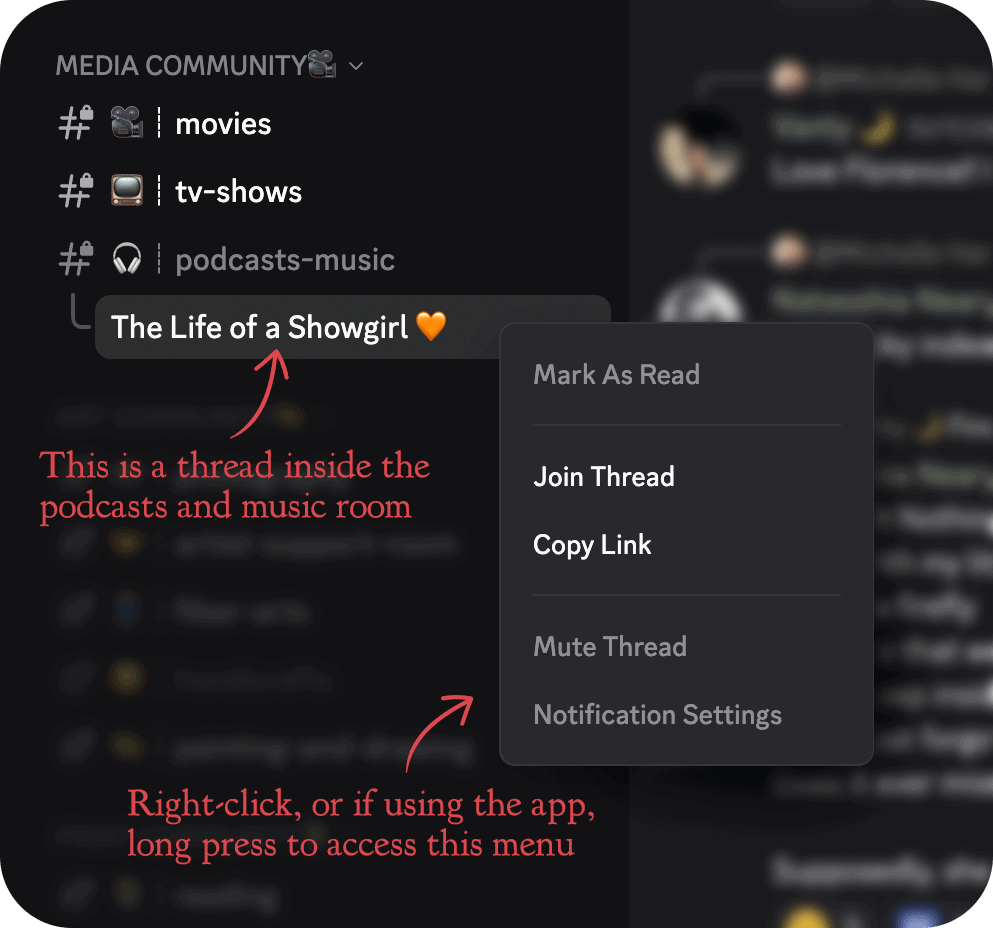
How to use threads
News from Jamie
Forums
Forums are mini-discussions that keep conversations organized. Members can create their own rooms within the community on three themes:
Shop Starlings: Post products and links to your shop. See guidelines under the book icon.
Starlings by Location: Connect locally; start a room if your region doesn’t exist.
World Travel: Share trip destinations, recommendations, or advice around a specific city, region or country you traveled to or will be traveling to. Create a room if it doesn’t exist.
Help
Drop a note in help-suggestions any time with questions or suggestions.
Voilà!
That’s your crash course into Discord. It’s a lot at first, but once you’re familiar, it’s a remarkable tool for connecting with fellow Starlings. Pile in, little Starlings — the ride’s gonna be great!